
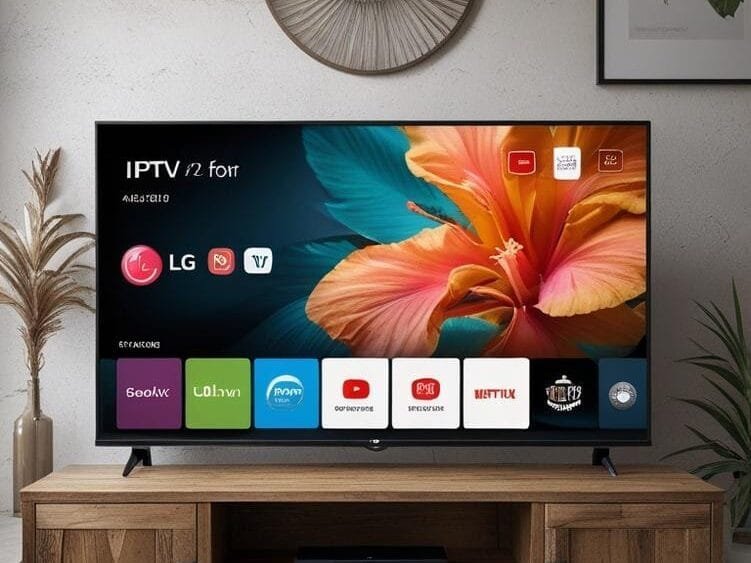
Cutting the cord doesn’t mean sacrificing quality entertainment especially when you own an LG TV. With IPTV for LG TV, you can transform your living room into a limitless streaming hub. The native WebOS platform offers seamless compatibility with IPTV services, and providers like Limitless IPTV deliver thousands of live channels, movies, and on-demand content in stunning 4K. Whether you’re looking to replace traditional cable or upgrade your streaming setup, IPTV brings you speed, flexibility, and a massive content library right at your fingertips. In this guide, you’ll learn exactly how to set up IPTV on your LG Smart TV, the best apps to use, and the tips you need for a smooth, buffer-free viewing experience. Let’s dive in and unlock the full potential of your LG TV.
Table of Contents
Step-by-Step Guide to Setting Up IPTV on LG TV
Configuring an lg smart iptv setup is simpler than you think. Follow these steps for a buffer-free experience:
- Install an IPTV App: Open the LG Content Store, search for “IPTV Smarter” or “SS IPTV,” and download your preferred app.
- Launch the App & Activate Limitless: Open the app and enter your Limitless IPTV credentials (received via email after purchase).Load Your Playlist: Within the app settings, paste your M3U URL from Limitless to sync channels and VOD content.
- Customize Your Viewing: Create favorites, enable EPG (Electronic Program Guide), and organize channels by category.
Why Limitless IPTV Shines on LG TVs
WebOS combines beautifully with Limitless’s high-bitrate streams. Unlike generic providers, Limitless optimizes for LG’s hardware, ensuring smooth playback even in 4K HDR.
Tips for Crystal-Clear Streaming on LG IPTV
- Upgrade Your Internet: Aim for 25+ Mbps for HD and 50+ Mbps for 4K streaming.
- Use a Wired Connection: An Ethernet cable reduces latency compared to Wi-Fi.Enable a VPN: Bypass ISP throttling—choose servers near Limitless’s infrastructure for optimal speeds.
- Clear Cache Regularly: Free up memory in your IPTV app settings monthly.
Alternative Methods If Native Apps Fall Short
Prefer more flexibility? Try these workarounds:
- External Devices: Use a Fire Stick 4K or Android TV Box loaded with TiviMate or IPTV Smarters for advanced features.
- Screen Mirroring: Cast from a smartphone/tablet running Limitless IPTV’s mobile app (ideal for older LG models).
- Third-Party Apps: For tech-savvy users, sideloading apps like SmartSTB via Developer Mode unlocks additional options.
Conclusion: Future-Proof Your LG TV with IPTV
Maximize your LG TV’s potential with IPTV for LG TV. From live sports to international content, Limitless delivers without the cable clutter. While native lg smart iptv apps offer convenience, pairing your TV with Limitless’s reliable service ensures a seamless, cinema-grade experience—anytime, anywhere.
✅ FAQ – IPTV on LG Smart TV (2026 Updated)
❓ Can I install IPTV on any LG Smart TV model?
Yes, almost all models running webOS support IPTV on LG Smart TV. Newer models (2018–2026) offer better performance and more IPTV app options like Smart IPTV, SET IPTV, and OttPlayer.
❓ Which IPTV app works best on LG Smart TV?
The most reliable apps for IPTV on LG Smart TV include Smart IPTV (SIPTV), SET IPTV, OTTPlayer, and SmartOne IPTV. These apps support M3U playlists and Xtream Codes formats.
❓ Why is my IPTV on LG Smart TV buffering?
Buffering on IPTV on LG Smart TV usually comes from slow internet, weak Wi-Fi, or overloaded IPTV servers. Try restarting the router, using a wired Ethernet cable, or switching to a better playlist/server.
❓ Do LG TVs support M3U playlists?
Yes, almost all IPTV players on LG Smart TV allow you to upload M3U playlists via app settings or the player’s website. Some apps require you to activate them with a one-time fee.
❓ Is it possible to install IPTV on older LG Smart TVs?
Yes, but older LG TVs may not support all IPTV apps. If the LG Content Store doesn’t show IPTV apps, you can still use IPTV on LG Smart TV by connecting a Firestick, Android TV Box, or Chromecast.
❓ Do I need a VPN for IPTV on LG Smart TV?
A VPN is recommended, especially if you experience geo-blocking or ISP throttling. While VPN apps can’t be installed directly on LG TVs, you can use a router-level VPN or connect through a streaming device that supports VPN apps.
❓ Why can’t I find IPTV apps in the LG Content Store?
Some IPTV apps are restricted in specific regions. If IPTV on LG Smart TV apps don’t show up, change your LG account region or install IPTV through a USB-compatible player like SmartOne IPTV.
❓ Is IPTV safe to use on LG Smart TV?
Yes, IPTV is safe as long as you use legitimate apps and trusted providers. Make sure your playlist comes from a reliable source, and consider using a VPN for privacy and stability.