
Installation Guides — Step-by-Step Setup for Every Device
Follow our simple tutorials to install Limitless IPTV on any device: Android, iPhone, Smart TV, Fire Stick, MAG, PC, and more. Fast setup, clear instructions, and support available 24/7.
Android (Smartphones & Android Box)
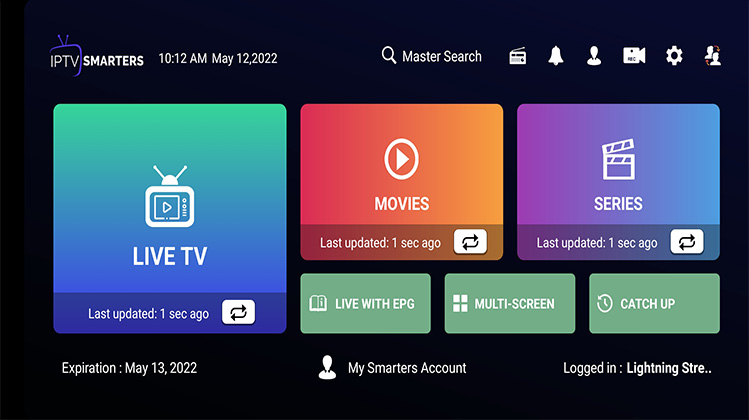
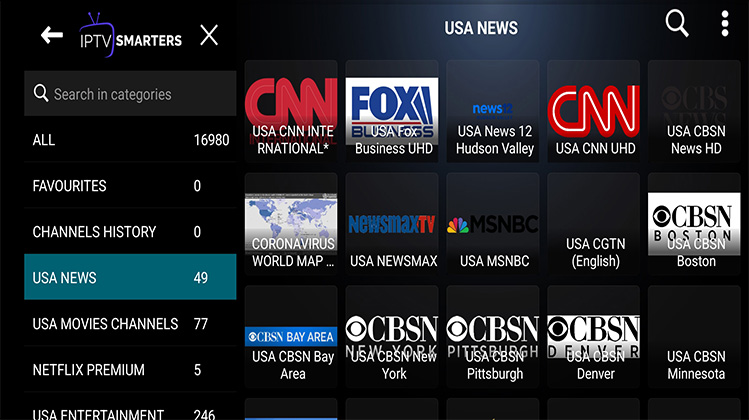
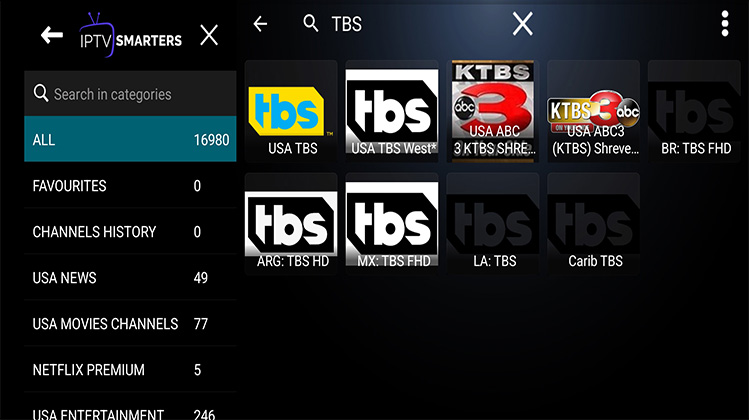
- Install a player like IPTV Smarters, TiviMate or VLC from Google Play.
- Open the app and add subscription using your M3U URL or Xtream credentials we provided.
- After adding, wait a few seconds for channels to load and enjoy.


Apple (iPhone / iPad / Apple TV)
Using iPlay TV
- Download iPlayTV from the App Store.
- Upload the M3U URL we sent into the app.
- Enjoy the IPTV playlist on your Apple device.
Using GSE SMART IPTV PRO
- Install GSE SMART IPTV PRO.
- Open app, accept EULA, then add the M3U URL or Xtream credentials.
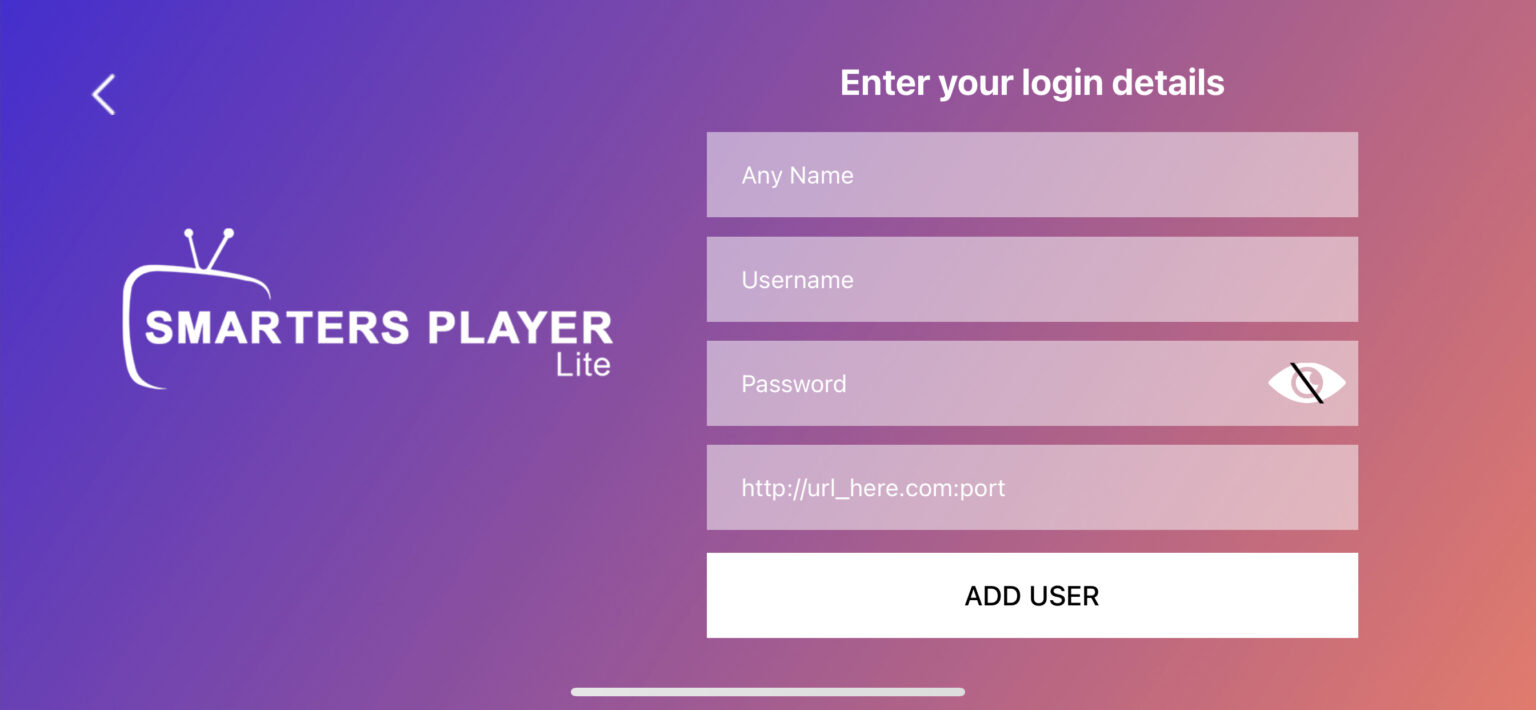

Smart TV (Samsung & LG) / Amazon Fire Stick
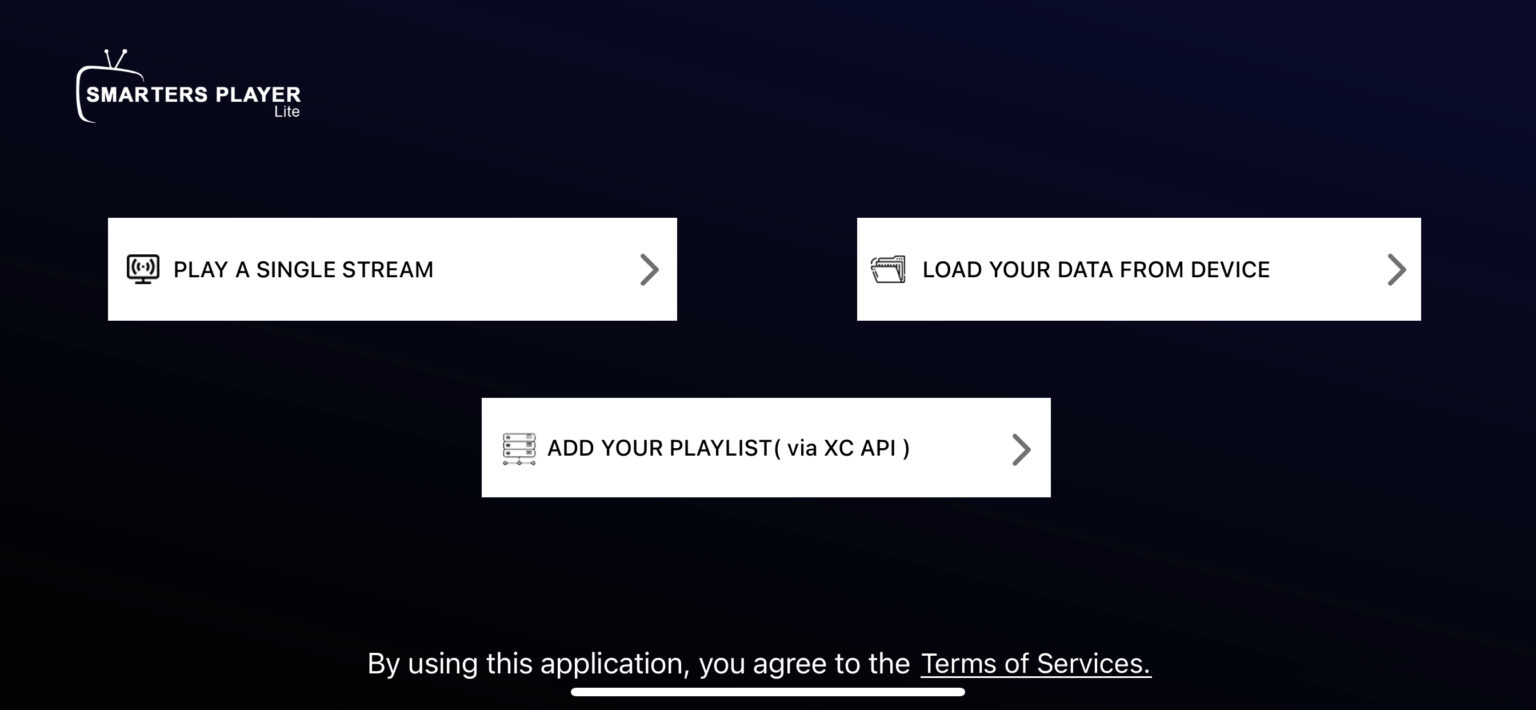
- Download the IPTV player available in your TV store (e.g., IPTV Smarters or native app).
- Open the app and enter the M3U URL or Xtream login details.
- Wait for channels to load and enjoy.
Kodi Version 16 or Lower
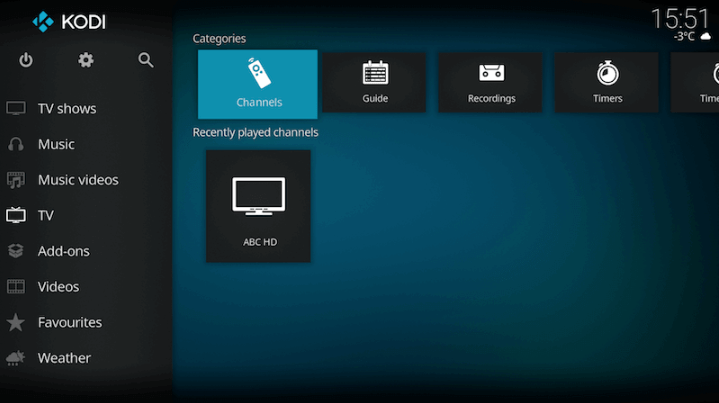
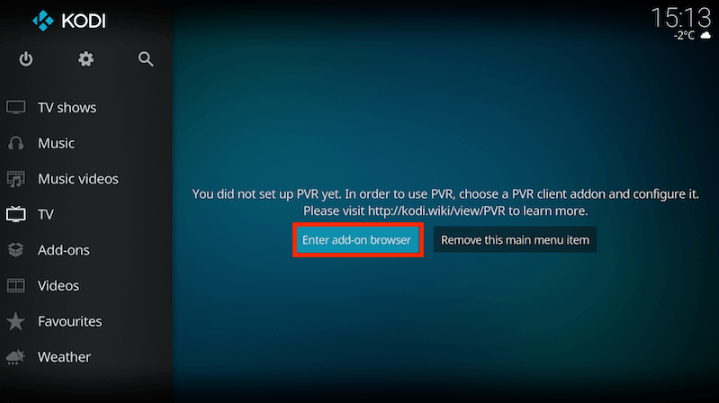
- Open Kodi → SYSTEM → TV (or Live TV on older versions).
- General → Enable PVR IPTV Simple Client.
- Configure → In General select M3U Playlist URL → paste your M3U URL → OK → Reboot Kodi.
- After reboot you will see TV/Live TV and the channel list.

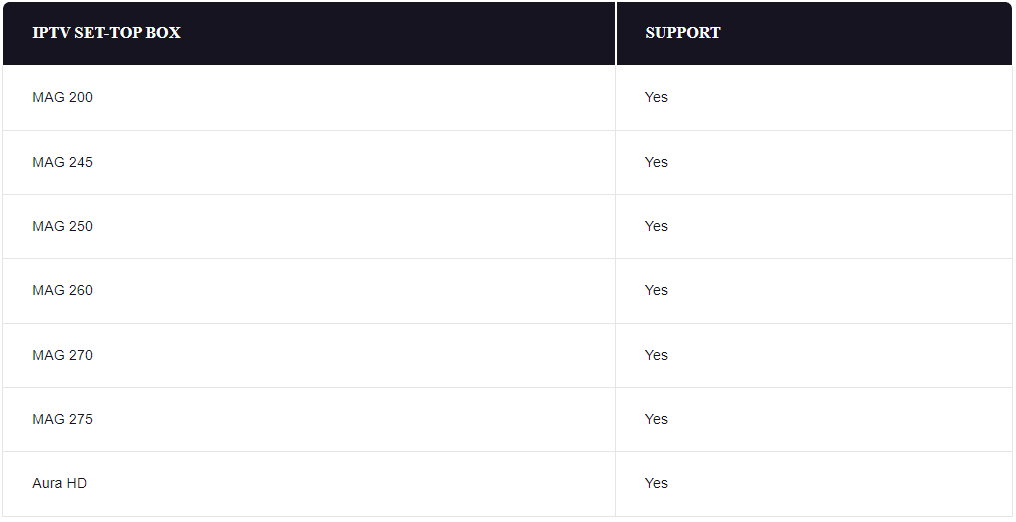
MAG 250/254/256
- Connect MAG device to TV & Internet.
- Settings → System Settings → Servers → Portals.
- Set Portal 1 name and Portal 1 URL (we sent in email). Save and reboot the device.
STB Emulator
- Install STB Emulator from Google Play.
- Open app → get MAC address on screen.
- Settings → Profiles → Add profile / Test portal → Portal settings → paste Portal URL.
OpenBox
- Open Internet Browser → paste your M3U URL into the address bar → Save as file named "IPTV".
- Copy to USB → insert → read from USB in Openbox settings → start watching.
Dreamlink T1 / T1+ / T2 / T6
- Boot device and finish updates.
- Find MAC address in DOL screen (top-right).
- In Dreamlink → Settings → Edit → Enter Portal name and Portal URL → Restart.
Enigma2 / Dreambox / Vu+
- On device get IP: Settings → Setup → System → Network → Adapter.
- On PC download PuTTY: https://the.earth.li/~sgtatham/putty/latest/x86/putty.exe
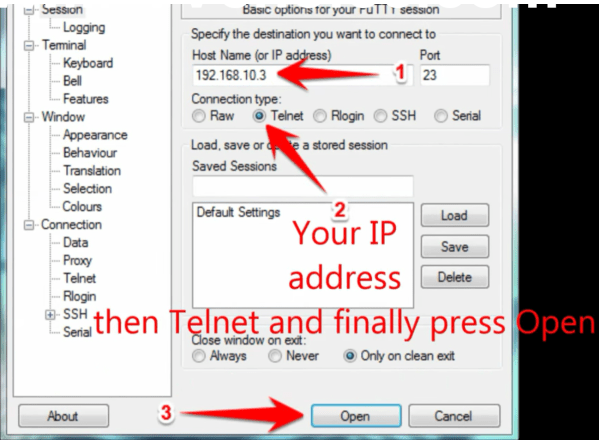
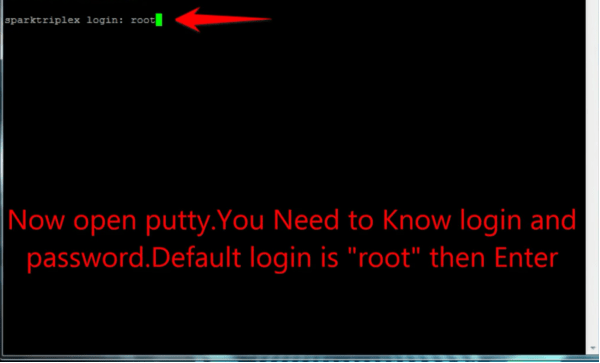
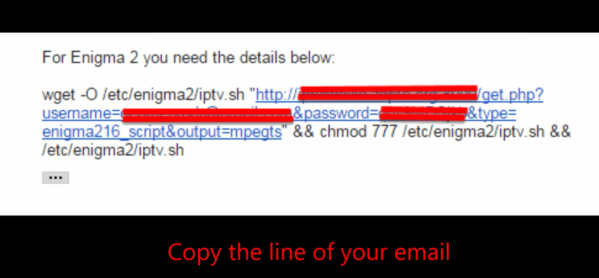
- Open PuTTY → enter Enigma IP, port 23, connection type Telnet → Open and follow advanced setup if needed.
PC / Mac (VLC)
- Download VLC: https://www.videolan.org/vlc/
- Open VLC → Media → Open Network Stream → paste your subscription URL and press Play.
Amazon Fire Stick
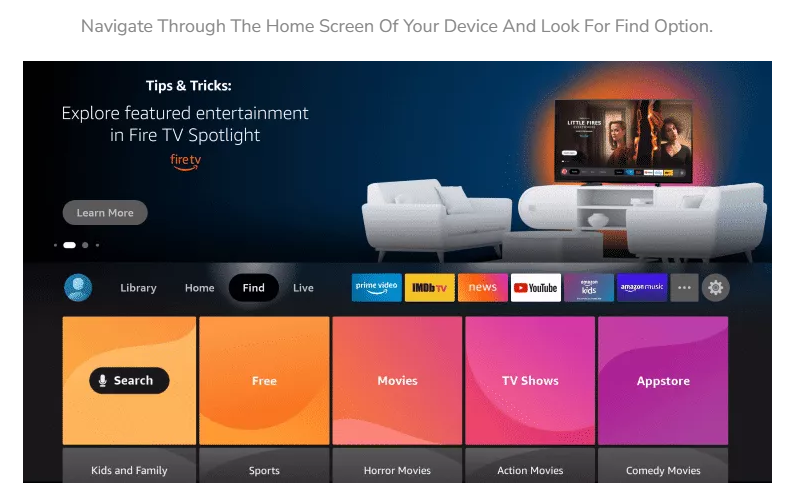
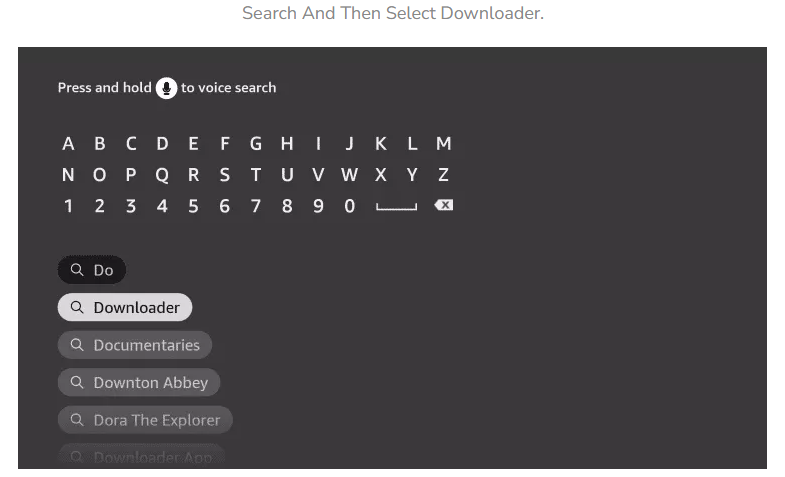
- Install a compatible IPTV app (IPTV Smarters, Downloader + install APK or via store).
- Open the app and add your M3U link or Xtream credentials.

Ready to Experience True 4K Streaming?
Stop buffering and start watching your favorite channels today.
Get Your Subscription Now 🚀Setup & Installation Guide
Get started on your favorite device in less than 5 minutes
Not at all! We designed our setup to be super simple. Whether you use a Smart TV, Firestick, or Phone, you will receive an easy step-by-step guide with your order. Most customers are watching within 5 minutes.
For Android & Firestick, we recommend IPTV Smarters Pro or TiviMate. For Smart TVs (Samsung/LG), IBO Player or Set IPTV are excellent. For iOS, use GSE Smart IPTV.
In most cases, No. Our servers are secure and anti-throttling. However, if your ISP blocks IPTV connections (common in UK/USA), using a VPN can help bypass restrictions and protect your privacy.
Yes, you can install your subscription on unlimited devices (TV, Phone, Tablet). However, you can only stream on one device at a time unless you purchase an extra connection.