
Table of Contents
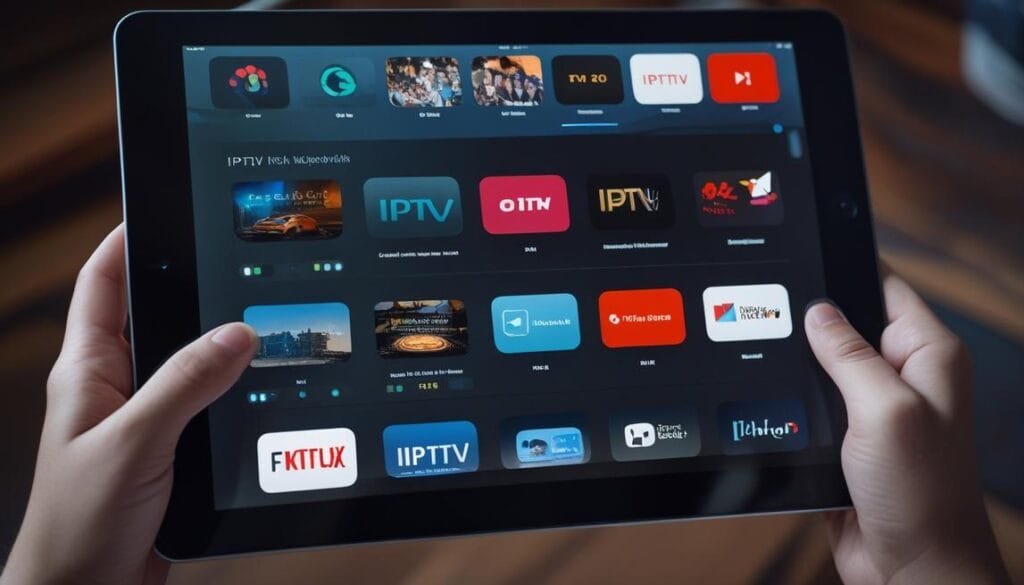
Turn your iPad into a powerful entertainment hub with IPTV for iPad, giving you instant access to live sports, premium movies, and international TV channels. IPTV delivers live TV, VOD, and catch-up content through the internet, without cable boxes. With Limitless IPTV, iPad users enjoy thousands of global channels in smooth 4K streaming and a buffer-free experience optimized for iOS.
Getting Started: Setting Up IPTV on Your iPad
Turning your iPad into an IPTV powerhouse involves selecting reliable service credentials, installing a compatible player app, and optimizing settings for seamless playback. Follow these steps to unlock limitless entertainment.
Step 1: Choose a Premium IPTV Service Provider
- Subscribe to a reputable provider like Limitless IPTV (ensure they offer M3U URLs or Xtream Codes API).
- Check channel availability (sports, PPV, international) and 4K/FHD streaming support.
- Verify device compatibility – most top-tier providers support iPadOS/iOS apps.
Step 2: Install an IPTV Player App
- Open the App Store and search for top-rated IPTV apps for iPad like GSE Smart IPTV or IPTV Smarters Pro.
- Download and install your chosen app (free versions often suffice, but premium unlocks ad-free viewing).
- Grant necessary permissions (local network access for casting, notifications for live event reminders).
Step 3: Configure Your IPTV Service
- Launch the app and select “Add Playlist” or “Login via Xtream Codes.”
- Enter credentials provided by your IPTV for iPad service (username, password, portal URL).
- Organize channels by language, genre, or favorites for quick access.
Step 4: Optimize Playback Settings
- Enable hardware acceleration in app settings for smoother 4K/HDR playback.
- Adjust buffer size to “Large” if experiencing lag on slower networks.
- Activate Closed Captioning or audio track selection if needed.
Troubleshooting Common Issues
- Buffering: Switch from Wi-Fi to 5Ghz band or Ethernet via USB-C adapter.
- Login Errors: Double-check Xtream Codes API entries (case-sensitive).
- App Crashes: Update iPadOS to the latest version and reinstall the app.
Pro Tips to Eliminate Buffering & Maximize Quality
A flawless IPTV apps for iPad experience hinges on technical optimizations. Implement these strategies for pristine streams.
Internet Speed Requirements
- SD Content: Minimum 10 Mbps
- Full HD/1080p: 25+ Mbps
- 4K UHD: 50+ Mbps (Ensure your ISP doesn’t throttle streaming traffic)
Network Enhancements
- Use a dual-band router and connect your iPad to the 5GHz network for reduced interference.
- Position your iPad closer to the router or invest in a Wi-Fi mesh system for larger homes.
- Disable iCloud backups/downloads during streaming sessions to reserve bandwidth.
VPN: A Double-Edged Sword
- Pros: Bypasses ISP throttling and geo-blocks for international sports.
- Cons: Can increase latency – choose VPNs with “streaming-optimized” servers (e.g., NordVPN, ExpressVPN).
- Tip: Connect to servers geographically closest to your IPTV provider’s infrastructure.
In-App Optimizations
- Lower video quality during peak hours (Settings > Playback > Auto-Adjust Bitrate).
- Close background Safari tabs/apps via iPad’s App Switcher to free up RAM.
- Periodically clear the IPTV app’s cache (found in iOS Settings > [App Name]).
Beyond Native Apps: Alternative IPTV Methods for iPad
While dedicated apps excel, these methods expand your iPad’s IPTV versatility.
Screen Mirroring from Other Devices
- Cast from Android/Firestick: Use AirPlay-compatible apps like AirScreen to mirror to iPad.
- Windows/Mac Streaming: Install TiviMate or Smart STB on a computer, then use Safari on iPad to access via web portal.
Cloud-Based IPTV Players
- Upload M3U playlists to cloud storage (Google Drive, iCloud).
- Use web players like SPXTN TV accessed via Safari – no app installation needed.
External Set-Top Boxes (Apple TV Mode)
- Connect Apple TV 4K to home network, then utilize iPad as a remote via Apple’s Remote app.
- Configure Control Center integration for quick playback adjustments while gaming/browsing on iPad.
Why Limitless IPTV Dominates iPad Streaming
Optimized protocols ensure zero buffering on Apple’s A-series/M-series chips, while curated channel groups (NBA League Pass, BeIN Sports, Netflix-style VOD) simplify navigation. Their 24/7 support actively troubleshoots iOS-specific quirks – a rarity among providers.
Upgrading to their “Pro” tier unlocks DVR-style catch-up and multi-screen viewing, letting you watch ATP Tour on iPad while family streams Disney+ elsewhere. Try their free 24-hour trial to experience the difference.
Final Thoughts
Mastering IPTV for iPad transforms your tablet into the ultimate on-the-go entertainment hub. With the right provider (like Limitless IPTV), a robust network setup, and top-tier IPTV apps for iPad, you’ll enjoy cable-free viewing that adapts to your lifestyle – whether commuting, traveling, or relaxing at home. Ready to revolutionize your iPad? Start streaming smarter today.